Unblock a website in AdGuard Home without switching it off
gist Find the failed request in Query Log, read the matching rule, allow the smallest domain needed, and test the broken feature again.
You stopped about in. Jump back
contents
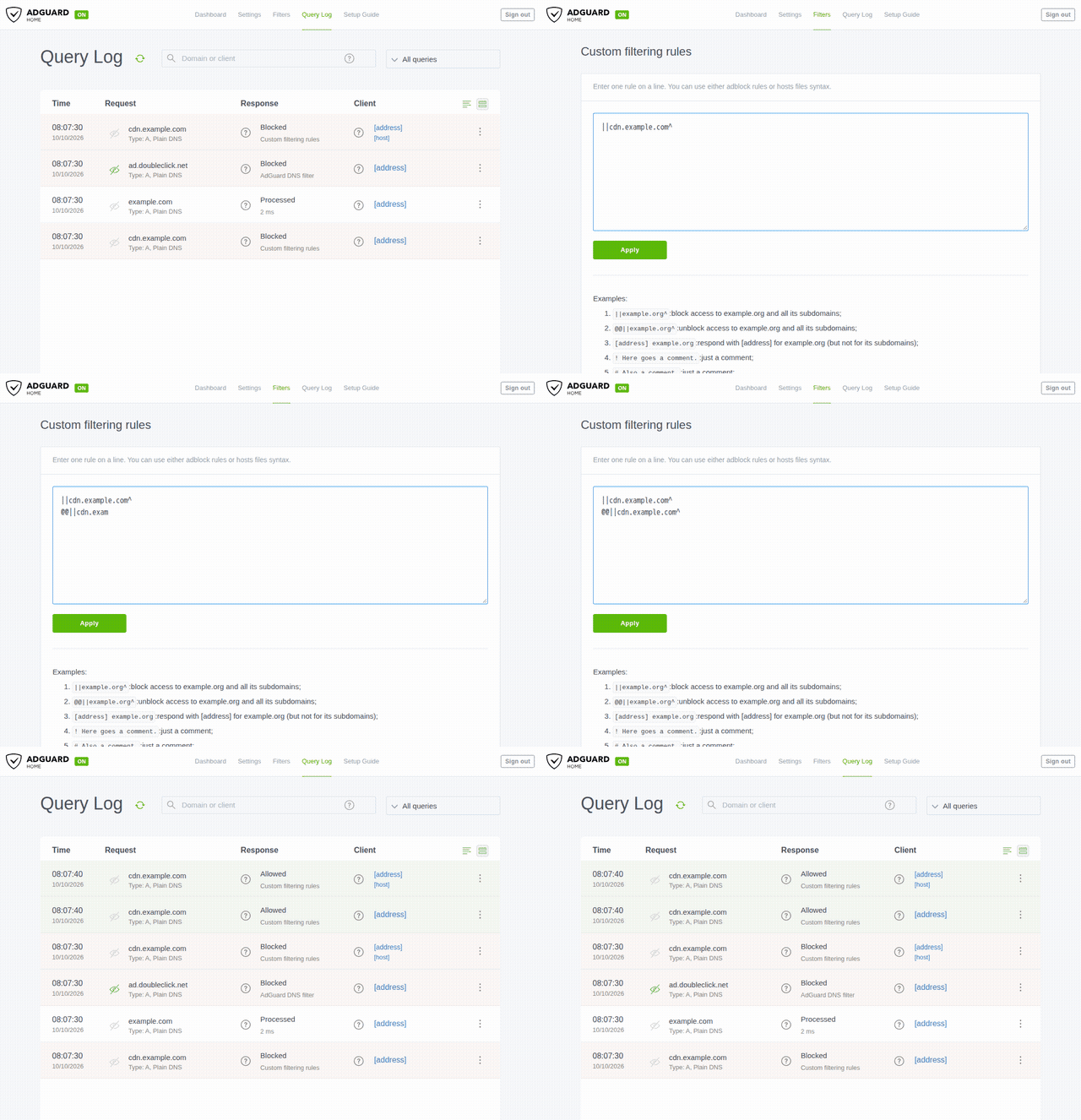
AdGuard Home can allow a website’s main domain while still blocking a domain needed for its video player, images, or sign-in. Find that blocked request before adding more exceptions. DNS filtering works on hostnames, so allowing one hostname does not allow every service a page uses. How AdGuard Home works
I run AdGuard Home in a Docker container on my Unraid box. The steps below use its Query Log and custom filtering rules.
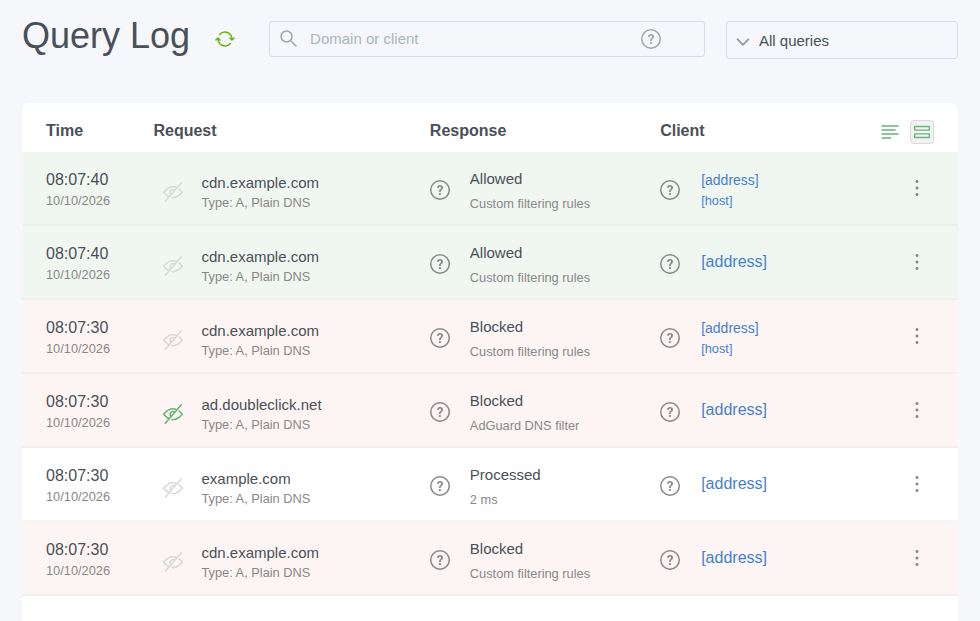
The screenshots come from a throwaway test install, not my live one. cdn.example.com stands in for whatever domain your site needs.
Step 1: Find the blocked request
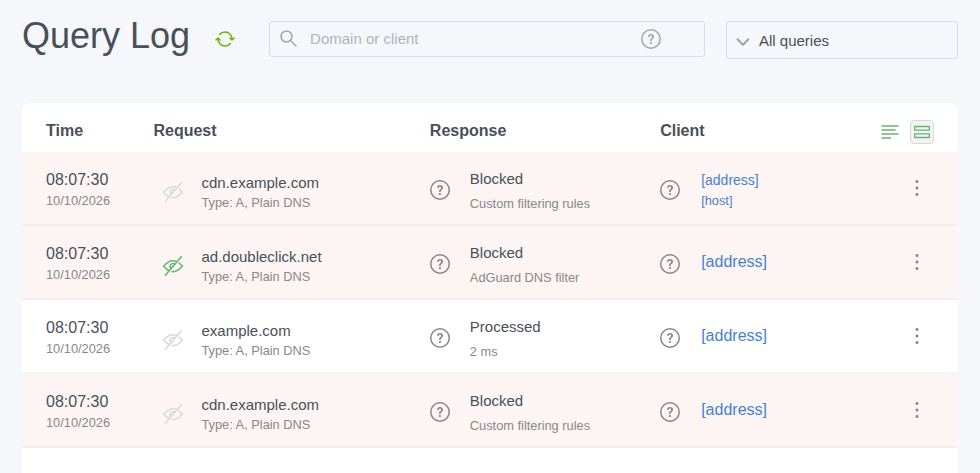
Open Query Log in AdGuard Home. Note the time, then reproduce the problem on the affected device. Click the failed video, image, or sign-in button.
Look at requests from that device around that time. Start with blocked entries, but check all entries if nothing appears.
A blocked request near the failure is a candidate. It is not proof that the website needs it. Test one exception at a time.
If fresh requests never appear, check that query logging is enabled and that the device uses this AdGuard Home instance. Browser secure DNS or a VPN may send requests elsewhere. AdGuard’s troubleshooting instructions use a visible Query Log entry to confirm that a lookup reaches the server. AdGuard Home FAQ
Step 2: Read the matching rule
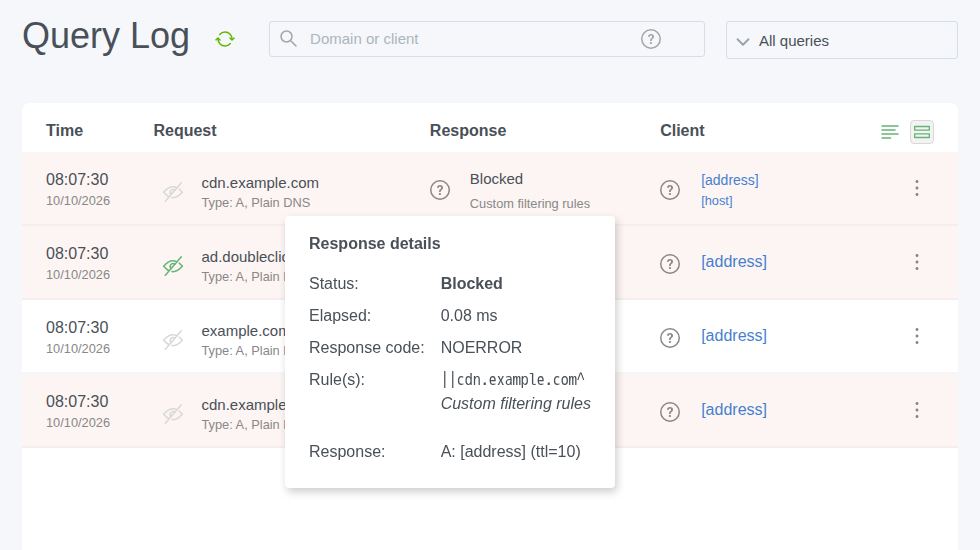
Open the candidate request’s details. Check:
- The hostname requested.
- The reason it was blocked.
- The matching rule and filter list, when shown.
- Whether the result says Blocked by CNAME or IP.
A CNAME is a DNS alias. AdGuard Home checks responses as well as requests, so a hostname can be blocked because its answer points to a blocked domain. Inspect that alias before widening an exception. CNAME filtering explained
The reason matters. A filter-list match, a blocked service, and a DNS rewrite require different checks. If the entry names a service or rewrite, review that setting first.
Keep the original rule available so you can compare it with the result after the change.
Step 3: Add a narrow exception
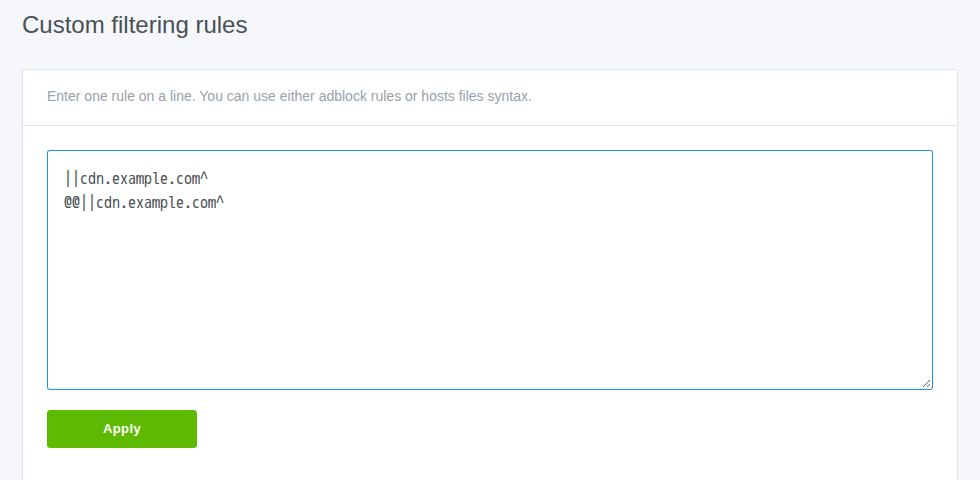
Open Filters → Custom filtering rules. Add one rule on its own line, then save.
For only the exact demo hostname:
@@|cdn.example.com|The @@ prefix marks an exception. The surrounding single bars anchor the match to the whole hostname.
If the feature also needs subdomains beneath that hostname, this broader form allows both:
@@||cdn.example.com^Here, || includes subdomains and ^ marks the hostname boundary. This rule also allows assets.cdn.example.com. Use the exact-host form unless the broader scope is needed. AdGuard Home rule syntax
Replace the example with the hostname found in your log. Do not include https://, a page path, or a query string.
If the matching blocking rule has $important, an ordinary exception can lose to it. For that case, an exact-host exception can also carry the modifier:
@@|cdn.example.com|$importantAn important exception wins against an important blocking rule. DNS rewrite rules have separate priority and exception syntax, so review a rewrite directly instead of assuming this modifier overrides it. Rule priority and rewrite syntax
Step 4: Test a fresh lookup
Retry the same feature on the same device. Watch for a new Query Log entry for the hostname.
If an old DNS answer is still cached, clear AdGuard Home’s DNS cache in Settings → DNS settings. The device can also retain a blocked answer until its cache expires. Check the configured Blocked response TTL rather than assuming a page reload clears it.
Confirm both results:
- The fresh lookup is no longer blocked by the rule you targeted.
- The video, image, or sign-in action now works.
An allowed DNS answer proves only that DNS filtering permitted the lookup. It does not prove that the website’s server or player works.
If the feature still fails, check for another blocked dependency. If the exception made no difference, remove it. When DNS succeeds and no relevant block remains, check the browser’s content blocker and the failed web request.
Compare the alternatives
| Option | When it helps | Tradeoff |
|---|---|---|
| Domain exception | One known dependency breaks a feature | Allows that hostname wherever the rule applies |
| Per-client filtering | One device needs different rules | Requires AdGuard Home to identify that device correctly |
| A smaller blocklist | One list repeatedly blocks needed services | Removes every block contributed by that list, including useful ones |
AdGuard Home supports individual client settings and rules limited by the $client modifier. Confirm the client shown in Query Log before using them. A router forwarding DNS may prevent you from distinguishing devices there. Client configuration
Common questions
What is the block/allow list order?
For ordinary domain rules, an exception beats a blocking rule. An $important blocking rule beats an ordinary exception. An exception with $important beats that important block.
There is no single list order that describes every setting. DNS rewrites have higher priority than ordinary rules. Check the logged reason and matching rule. Filtering rule priority
How to allow ads in selected websites?
AdGuard Home cannot scope an advertising-domain exception to the page you are visiting. A DNS lookup identifies the requested hostname, not the page that caused it.
Allowing a shared advertising domain can therefore allow it on other websites too. Use a browser content blocker with a site exception when you need page-specific control. DNS filtering limits
How can I see the ad domain?
Reproduce the problem while watching Query Log for the affected device. Compare the blocked hostnames with failed requests in the browser’s Network panel. Then test one hostname at a time.
A hostname appearing in the log does not by itself prove that it serves ads.
Why does adding a website URL to DNS allowlists fail?
That field imports a filter list. A normal website returns HTML, which is not a plain-text rules list. For one hostname, add an exception under Custom filtering rules.
Browse self-hosting guides for more home-service topics, or use the guide index to find another walkthrough.
../self-hosting/ every Self-hosting guide